Configuring your browser to work with SMART!
Before you start working with SMART! software, please make sure that the configuration of your browser allows the software to run properly:
1. SMART! should be opened with Internet Explorer (NOT Google Chrome/Firefox etc.)
2. Pop-up Blocker should be turned OFF.
3. ActiveX Filtering should be turned OFF (in Internet Explorer 9,10,11).
4. In Internet Explorer 11 only - add https://web.smart-fertilizer.com to compatibility view settings.
For support please contact us at:
1. Open Internet Explorer.
SMART! Fertilizer Web runs on Internet Explorer. The software does not run in other browsers.
* Internet Explorer is available on Windows 10. Click on the search icon in the main Windows screen and type “Internet Explorer”.
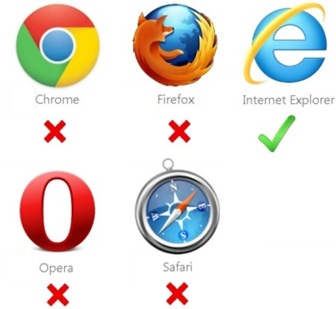
You can still use any other browser for your other web activities, simply make sure that you use Internet Explorer when you open SMART!
2. Turn off Pop-up Blocker
Go to the Tools menu of your browser (in IE 9 it also appears as a Gear icon on the top right corner of your browser). You can also click Alt+X to open this menu.
Go to Internet Options.
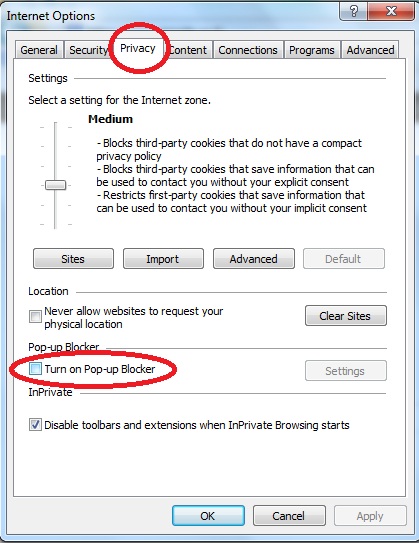
Select the Privacy tab.
Uncheck the Turn on Pop-up blocker and click OK.
3. Turn OFF ActiveX filtering (in IE 9,10,11)
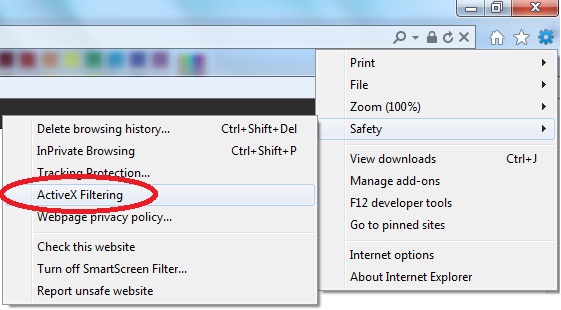
Click on the gear icon on the top right corner of your browser's window.
Select Safety and uncheck ActiveX filtering.
4. For IE 11 only - Compatibility View Settings
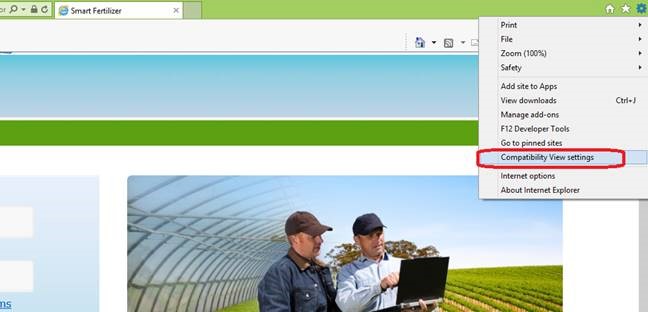
While in the log-in page of the program, https://web.smart-fertilizer.com, click on the gear icon in your browser (Tools) and select 'Compatibility View Settings'.
Click on Add