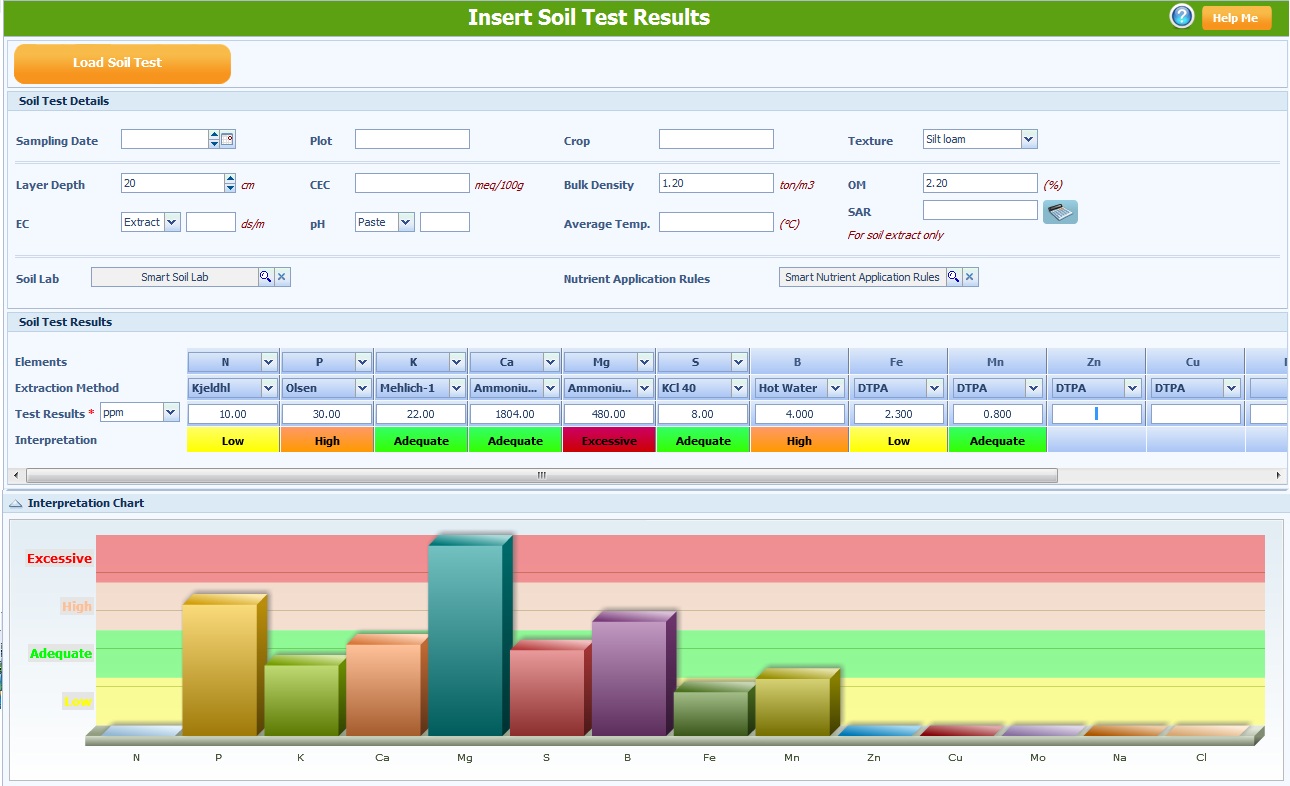
Interpreting Soil Test Results
Crop nutrient requirements (Target Values) --> Soil and/or tissue analysis --> Source Water --> Fertilizers --> Fertigation
From the main screen, from the Field Test Results box, select Interpret Soil Analysis. This will open the list of soil test results already saved in your account (the screen will show up empty if this is the first time you are using the system).
To add and interpret a new soil test report, select the New tab. This will open the soil interpretation window.

1. Entering basic information and parameters
Entering the parameters under Soil Test Details is optional. Some of these parameters may affect the nutrient recommendation.
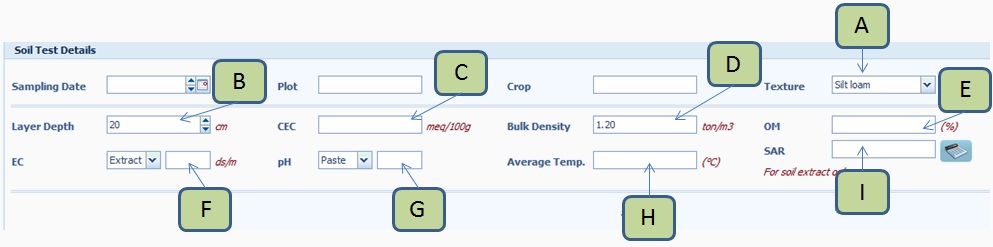
Texture - select the soil texture (A).
Layer Depth - soil depth that represents the depth from which the sample was taken (B).
CEC - Cation Exchange Capacity of the soil in meq/100g units (C).
Bulk Density - bulk density of the soil in ton/m3 (D).
OM - percent Organic Matter (E).
EC - measured Electrical Conductivity in ds/m (F).
pH - measured soil pH (G).
Average Temp. - average ambient temperature (H).
SAR - Sodium Absorption Ratio. This is a calculated value. When Ca, Mg and Na are measured in the soil solution you can click the calculator button next to the SAR field. SAR will be calculated (I).
2. Selecting Soil Lab and Nutrient Application Rules
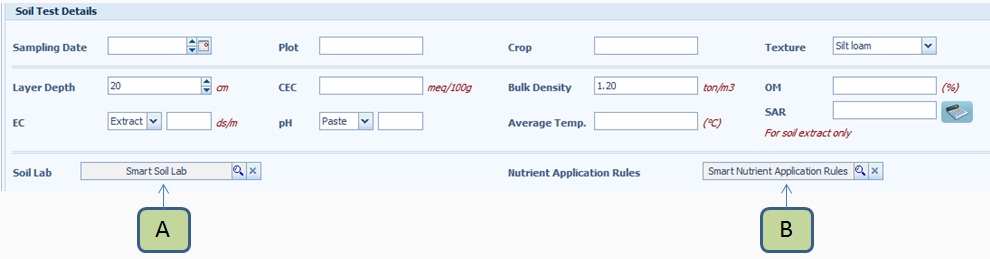 The Soil Lab determines the set of extraction methods (analytical methods used by the laboratory to determine nutrient levels in the soil) and the interpretation of each element level, using the specified extraction method.
Nutrient Application Rules determine how the software adjusts the nutrient target values, based on the soil test interpretation.
Use the default Smart Soil Lab (A), or select your own lab, if you defined it.
Use the default Smart Nutrient Application Rules (B), or select other pre-determined application rules.
3. Entering nutrient soil test results
-
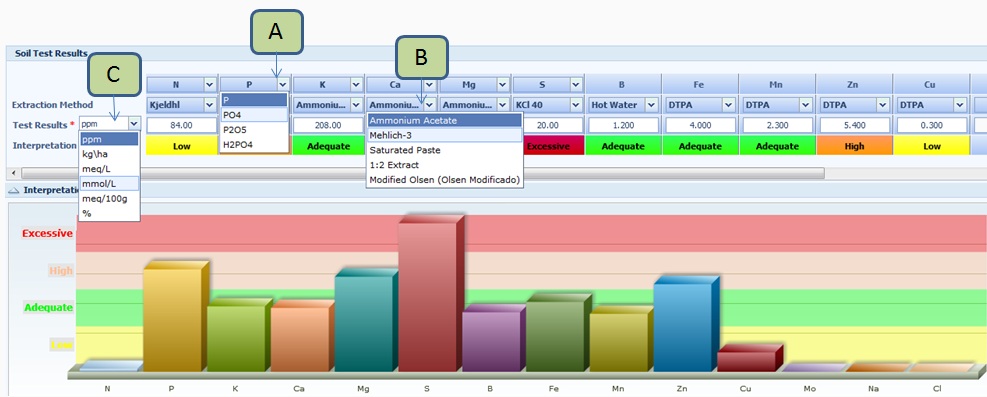
For each nutrient, select its ionic form, as indicated by your laboratory. Use the arrow next to the nutrient symbol, to open a drop-box (A) with available nutrient forms.
-
For each nutrient, from the Extraction Method drop-box (B) select the extraction method used by your laboratory for the soil analysis.
-
In the Test Results row, enter the test results for each nutrient.
IMPORTANT: before entering a value, make sure that the unit in the drop-box next to the Test Result row (C), corresponds to the unit indicated by your laboratory.
Some units that do not appear in the software, are equivalent to existing units.
Common examples:
ppm = mg/kg
cmol (+)/kg = meq/100g
Note that changing units will convert all values in the row to the selected unit.
SMART! instantly interprets the test results, as you enter them.
NOTE: In case that you cannot find the extraction method used by your laboratory in the Extraction Methods drop-down menu, or if the interpretation range and rating do not coincide with the information you have, you can easily add this information to your account. Contact Us and we will show you how.
Example:
if your laboratory indicated a test level of 1.5 mmol/L of K2O in a saturated soil paste, then:
In the Elements row, click the arrow next to K. A drop-box opens. and change K to K2O.
In the Extraction Method row, click the arrow next to extraction method under K2O and select Saturated Paste.
In the Test Results row, from the drop-box, select mmol/L.
Under K2O, Saturated Paste, enter the test result (1.5).